Customise the application layer to match your brand. Learn how the menu is arranged and set its graphics, colours, photos and touch prompt. The settings apply to devices assigned to this location.
These settings do not change the branding of the administration login page or partner portal.
You need permission to edit the location. If you do not have it, contact your account administrator.
Steps and settings
First, see which parts of the appearance you can customise and what the result can look like. Numbers in the model illustrations match the steps below. All options are optional; change only what you need.
Green represents the application layer, blue the presentation layer, and the front transparent plane the touch prompt. Coloured outlines explain the arrangement only; they are not part of the uploaded artwork. Configure your touch prompt in step 5.
The photo-gallery layout changes the menu arrangement (3). Add photos and set cropping in step 4. Cropping fills the area and may trim the edges; without cropping, the full photo is shown over a blurred background.
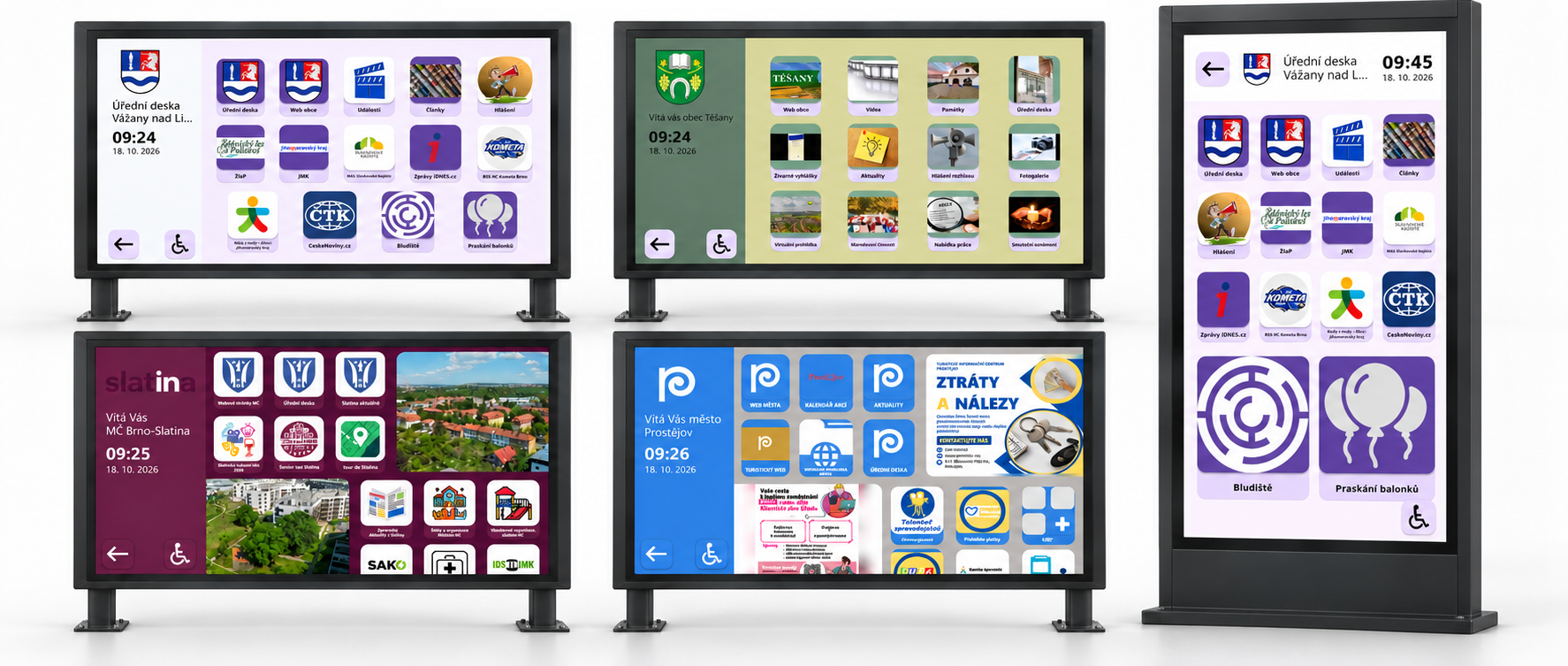
Real examples of the application layer (kiosk): your own look and content
These examples show application layers in real use: application menus customised by users with their own logos, colours and content. The application layer supports landscape and portrait screens.
Examples of real software deployments. The hardware shown is illustrative only.
Choose the application-layer logo. Select a logo image from your media. Use a transparent background if the logo needs to blend into the panel. Changing the panel colour cannot remove a white rectangle embedded in the image. The logo and its colours are not automatically recoloured.
Enter the menu heading. Enter the heading visitors will see in the kiosk menu, such as “Visitor Centre”. The location name in administration and the menu heading are separate fields.
Choose the menu layout and icon size.
Application layout type — Choose “With photo gallery” or “Without photo gallery”. Photographs change the space available and the arrangement of the menu. Without the gallery, this space is used for apps.
Applications icon size — The slider changes the image size inside a tile. For example, 60% scales the image within its allocated area; it does not mean 60% of the app count or tile size. The slider ranges from 0 to 100%. At 0%, the icon image is not visible.
The kiosk selects tile sizes and arrangement according to the number of apps, orientation and selected layout. The 5 × 3 and 4 × 5 grids in the illustration are examples, not a column-count setting. If only one app is available, the device may open that app directly rather than showing the menu.
Add photos and set photo cropping.
Add and remove photographs on the separate “Application layer photo gallery” tab. Then select “With photo gallery” under Branding. Uploading photographs alone does not select the gallery layout.
Cropping media in the application layer photo gallery — Enabled: the photograph fills its allocated area, so its edges may be cropped. Disabled: the entire photograph is shown, with a blurred version of the same image filling the remaining space.
This gallery belongs to the kiosk menu. It is separate from the Photo gallery app and from images played in campaigns.
Set the touch-screen prompt.
An overlay image appears over the presentation layer to let visitors know they can touch the screen to open the application layer. It is separate from the menu logo and gallery photographs. Select a separate image for each orientation in use. Transparent areas let the content underneath remain visible.
The touchscreen prompt does not replace navigation within a website. If you use the Website app without system controls, the website developer can add buttons to return to the app menu or campaign playback. See the example and technical instructions in the guide to controlling system layers from your website.
Horizontal screen: 16:9
Vertical screen: 9:16
Custom artwork: prepare a transparent image at the target screen’s resolution, separately for each landscape or portrait orientation you use. Upload it and select it in the corresponding overlay-image setting.
Graphics and placement: place any icon or text anywhere in the file. Transparent areas keep the playing content visible.
What the overlay does: it is an addition above the presentation layer, not a third independent content layer. The position of a drawn icon does not define the touch area; layer and app settings govern the transition.
You can also use the original transparent PNG images available below. Upload them in location branding to the field for the corresponding screen orientation. The checkerboard in the preview indicates transparency and is not part of the file.
In steps 6–11, you will set the colours of individual kiosk elements. Each group of settings applies to a specific element, such as the primary panel or the icon background.
Each group has two controls: “Background color” sets the background, while “Text and symbols color” sets the relevant foreground elements. Start with the panels and tiles, then check that text and controls remain easy to read after each change.
Click the colour swatch beside the field. Use the picker to adjust the hue, brightness and transparency, then confirm with OK. If you know your exact brand colour code, you can enter it directly in the field.
Use sufficient contrast: dark text on a light background, or light text on a dark background. Interface colours do not recolour photographs, videos, uploaded logos or third-party website content.
Set the primary-panel colours. The panel with the logo, heading and clock: on the left in landscape, at the top in portrait.
Background color: The primary panel background.
Text and symbols color: Text and symbols that use the primary panel foreground colour.
Set the secondary-panel colours. The menu content area: on the right in landscape, below the primary panel in portrait.
Background color: The secondary panel background; also used on other app screens.
Text and symbols color: Associated text and symbols on this background.
Set the application-icon background. The area behind an app icon image.
Background color: The icon background, particularly visible around a smaller or transparent image.
Text and symbols color: Used by certain other app controls. It does not recolour the icon image in the menu.
Set button and application-name backgrounds. The background behind app names and buttons that use this colour.
Set button and application text and symbol colours. App names and the relevant control symbols.
Set the global application background.
The global background is used, for example, in the inactivity countdown dialog and in some applications, including the USB player and Maze. It does not set the main tile-menu background. Check text contrast; keep the defaults if you do not need to change them.
Background color: The background of elements that use this colour group.
Text and symbols color: Associated text and symbols, for example in the inactivity warning.
Save your changes when you have finished. The server queues the updated application layer for delivery to devices at the location. Devices must be connected, and any new images must finish downloading. Check the result on a device assigned to the location; saving the form alone does not confirm delivery.