
Kiosk behaviour and controls
Introduction and orientation
Accessibility mode, inactivity timers and the dialog before returning to the default mode.
Steps and settings
The following options are available in the administration interface under Location Branding. They affect the position of the controls and the kiosk's return to the default mode after inactivity.
When an open application is inactive, the application time limit is followed by the final countdown. If the visitor does not continue, the system returns to the device's default mode after the countdown. The accessibility mode time limit independently determines when the controls return to their standard position.
- Set the accessibility-mode timeout.
The button with the wheelchair symbol switches the public kiosk to a mode with more accessible controls. The content and controls move lower so that a wheelchair user can reach them comfortably. After the configured time, the interface automatically returns to its standard layout.
Time limit for active accessibility mode determines the time before the controls return to their standard position after accessibility mode is activated.
Examples of standard mode and wheelchair mode
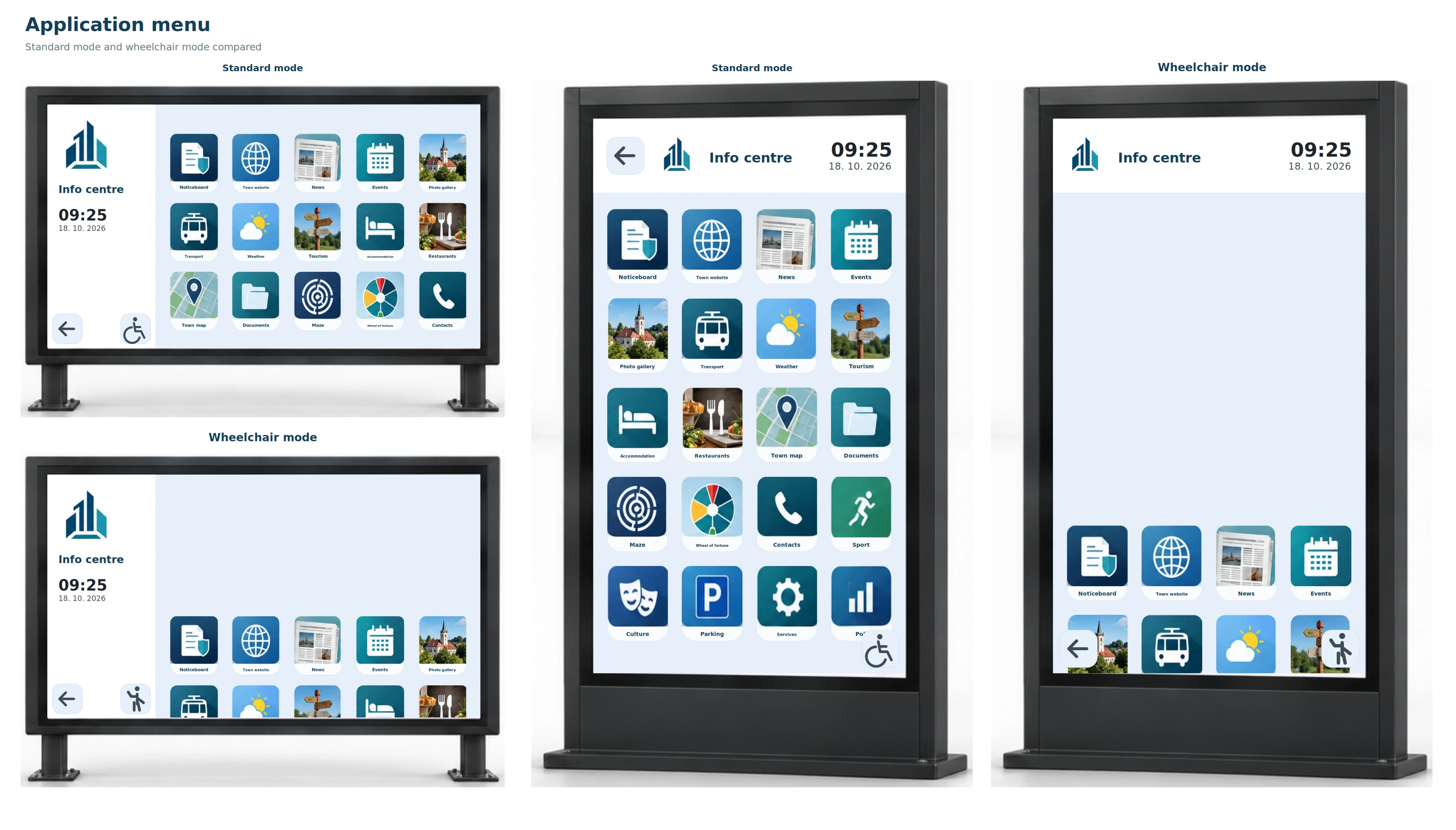
Application layer: standard mode and wheelchair mode. The menu content moves lower. Sample content based on the actual interface. 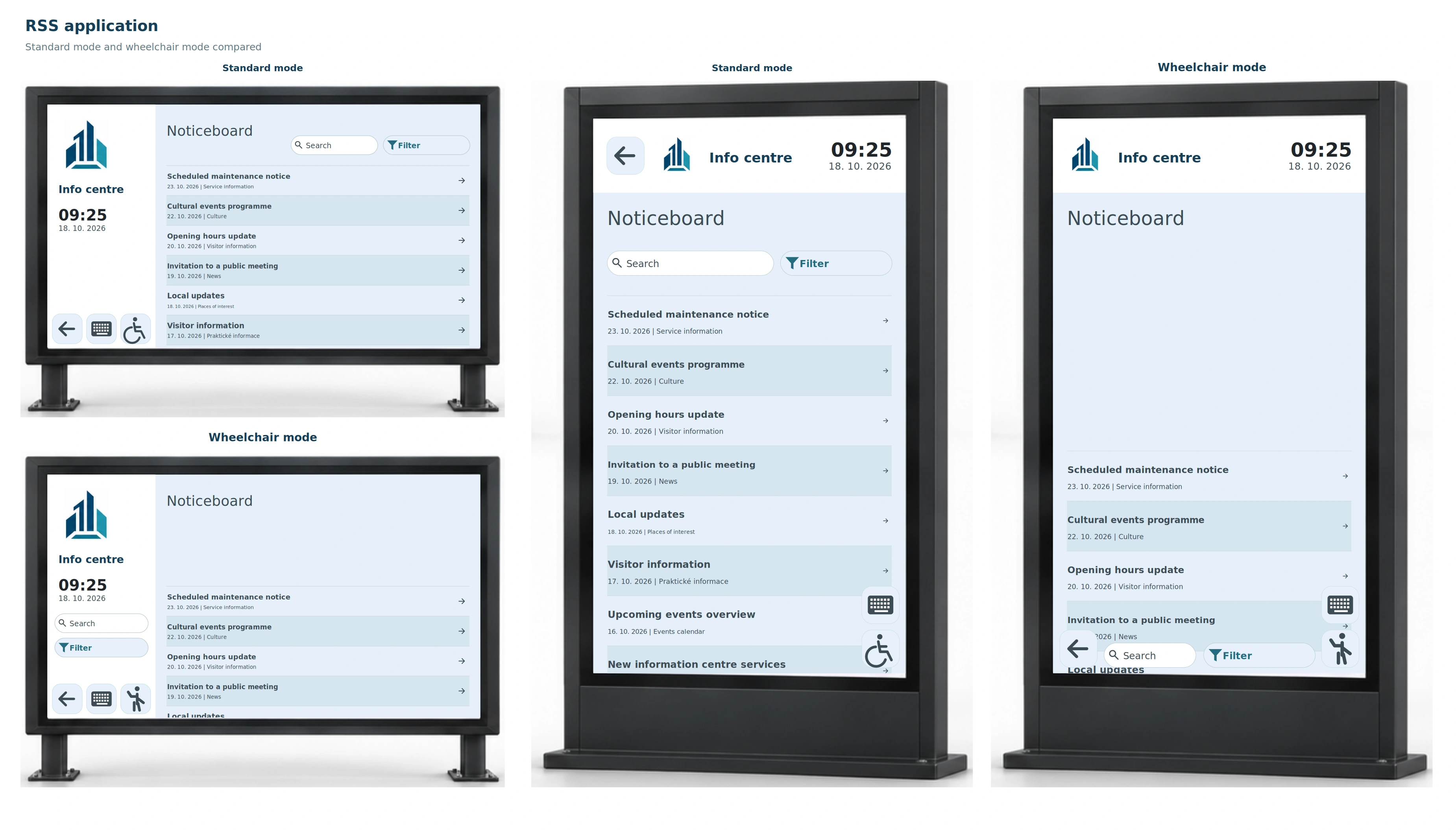
RSS application: wheelchair mode moves the list lower. In landscape orientation, search and filter move to the left panel; in portrait orientation, they move to the bottom. Sample content based on the actual interface. - Set the application inactivity timeout.
Application time limit determines how long an open application can remain inactive. If a visitor opens an application and leaves, it starts closing automatically after this time.
- Set the countdown before returning to the default state.
Countdown time limit for returning to the device's default settings is the final countdown. Before the return, a dialog appears with a countdown, such as 10, 9, 8…; if the user does not continue, the system returns to the default mode.
See the dialogue in the inactivity notice example.
- Edit the inactivity-dialog text.
Branding also lets you configure the text of the dialog shown before the kiosk automatically returns to its default mode, such as the alert title, the message “The application will close.” and the button text that lets the visitor confirm they want to continue using the screen.
Use the dialogue example as a reference when editing the text.
Check the result on a device in that Location.
Returning the kiosk to its default mode does not itself sign the visitor out of an embedded website or clear its cookies. The website and its operator must handle any required sign-out or session cleanup.
The kiosk's logo, colours, icons and layout are described in the guide Kiosk appearance and branding.
Related topics and next steps
Contact your software provider.