
White Label – setup and activation
Introduction and orientation
Set up your portal, game interface and documentation under your own brand: DNS, logos and activation.
How White Label works
Your users sign in through your own domain and see your branding on the login page and in the administration interface. The game interface and documentation are also available on your own subdomains. Your logo replaces the logo in the top-left corner of the documentation. The software provider operates the platform and configures all three domains and their HTTPS certificates.
Steps and settings
Where your branding appears
The following examples show where your logo, domain and browser icon appear on the login page, in the administration interface and in the documentation.
Login page
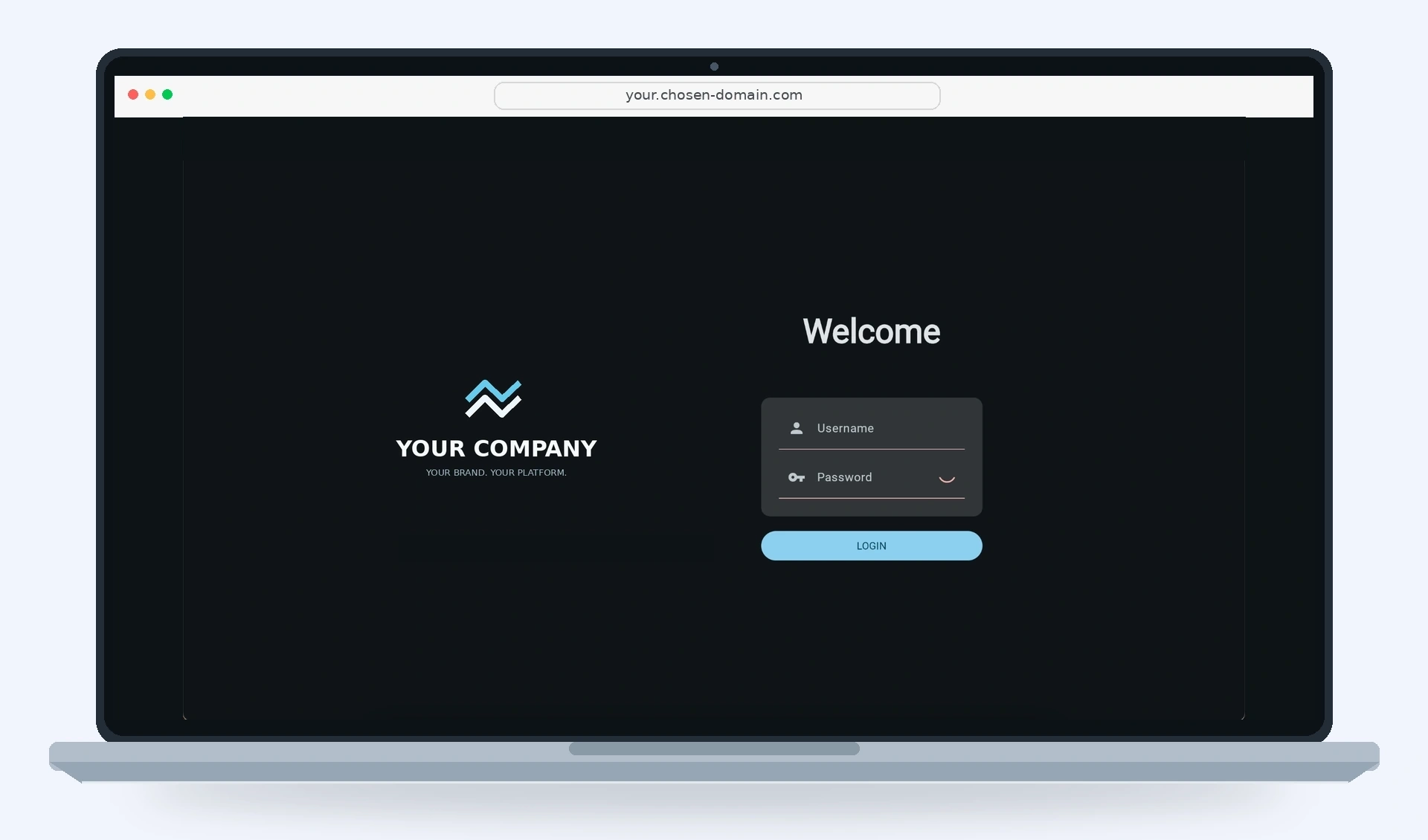
Logo A · Your domain
Your domain: your.chosen-domain.com
After signing in
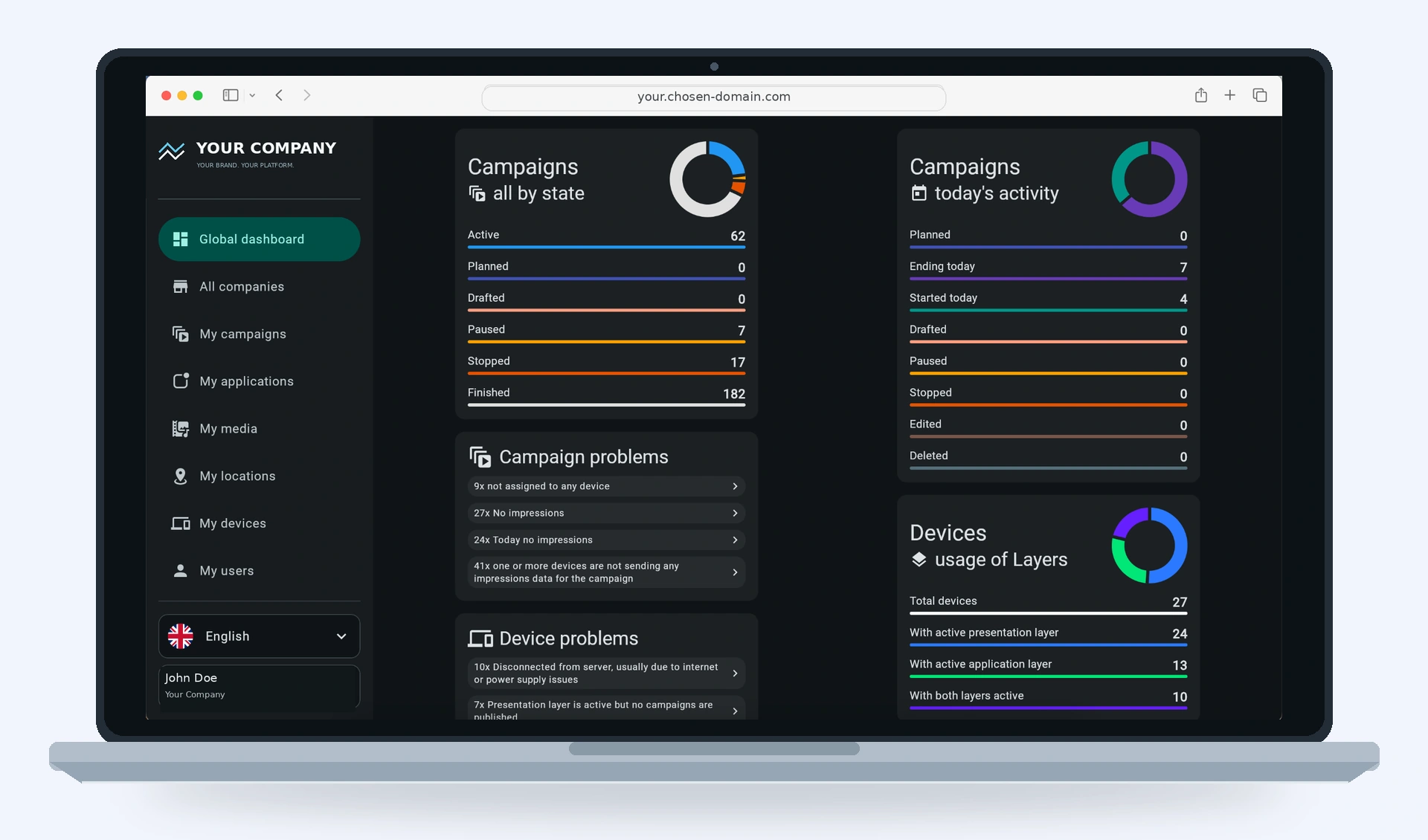
Logo B · Panel logo; Favicon · Browser icon
Example company and user: Your Company · John Doe
Documentation
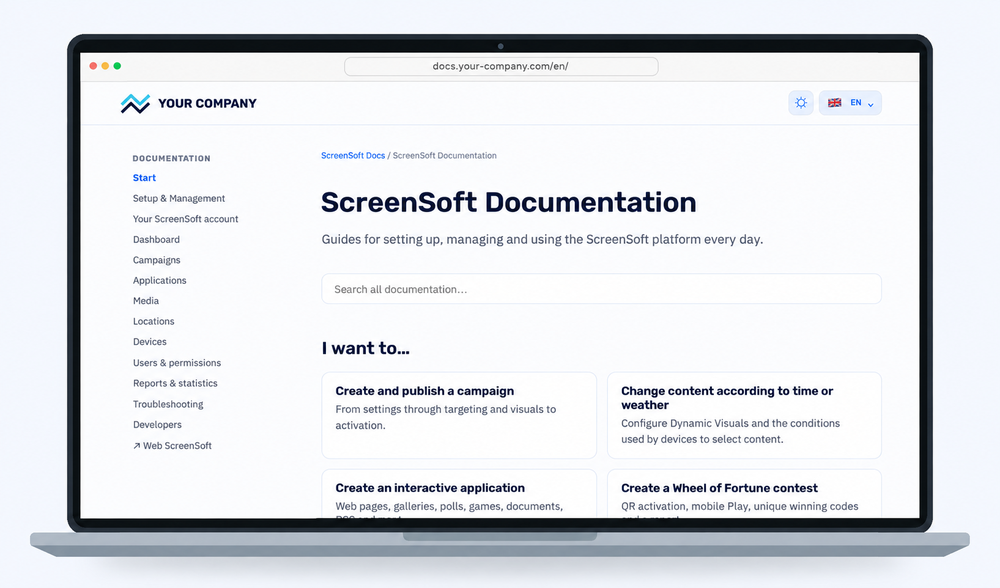
Logo C · Documentation logo at the top left
docs.your-company.com
The documentation will be available on your domain. Your software provider replaces the logo at the top left with your own; the content remains the system documentation.
Required branding files
All dimensions and PNG formats below are mandatory, not recommendations.
| File | Required size | Format |
|---|---|---|
| Logo A – administration interface | 512 × 512 px (1:1) | PNG, transparent background |
| Logo B – administration interface | 1846 × 512 px | PNG, transparent background |
| Logo C – documentation, for light backgrounds | 560 × 111 px | PNG, transparent background |
| Logo C – documentation, for dark backgrounds | 560 × 111 px | PNG, transparent background |
| Favicon – administration interface and documentation | 128 × 128 px (1:1) | PNG, transparent background |
All branding files must be PNGs with a transparent background, including both Logo C variants. The logo scales to fit the header without changing its aspect ratio.
DNS records
Create the following DNS A records with your domain provider. You can choose your own subdomain names – for example, portal.yourcompany.com, app.yourcompany.com or my.yourcompany.com for the administration portal. The subdomains in the table are examples only. This is DNS configuration, not a URL redirect.
| Service | Example subdomain | Record | IPv4 address | TTL (s) |
|---|---|---|---|---|
| Administration portal | portal.yourcompany.com | A | 5.189.165.191 | 1800 |
| Game interface | game.yourcompany.com | A | 207.180.230.105 | 1800 |
| Documentation | docs.your-company.com | A | 5.189.165.191 | 1800 |
Set TTL to 1800 seconds (30 minutes) for all three records. TTL specifies how long DNS resolvers may cache the response; it does not guarantee that the change will be visible everywhere in exactly 30 minutes.
What to send your software provider
Send the following details and graphics to your software provider.
Subdomains
Branding files
Administration interface
Documentation
Administration interface and documentation
- Favicon – 128 × 128 px (1:1), PNG, transparent background
Activation and verification
The software provider activates White Label within 24 hours counted on business days (Monday–Friday), starting once the DNS records are correctly configured and all required details and valid graphics have been received. For example, Friday at 14:00 means Monday at 14:00.
After activation, open the portal, game interface and documentation over HTTPS. Check sign-in, domains and logos. In the documentation, verify the top-left logo in both light and dark mode and check that each language is available. If anything is wrong, contact your software provider.
Related topics and next steps
← Back to overview – Setup & Management
Contact your software provider.