
Connect a device to Wi-Fi
Introduction and orientation
There are three valid ways to connect the device to Wi-Fi. We recommend the first because it is the clearest and easiest to use.
Steps and settings
Wi-Fi is configured in the service menu directly on the player display. If you do not know how to open it, see Accessing the service menu →.
Recommended method — Wi-Fi manager
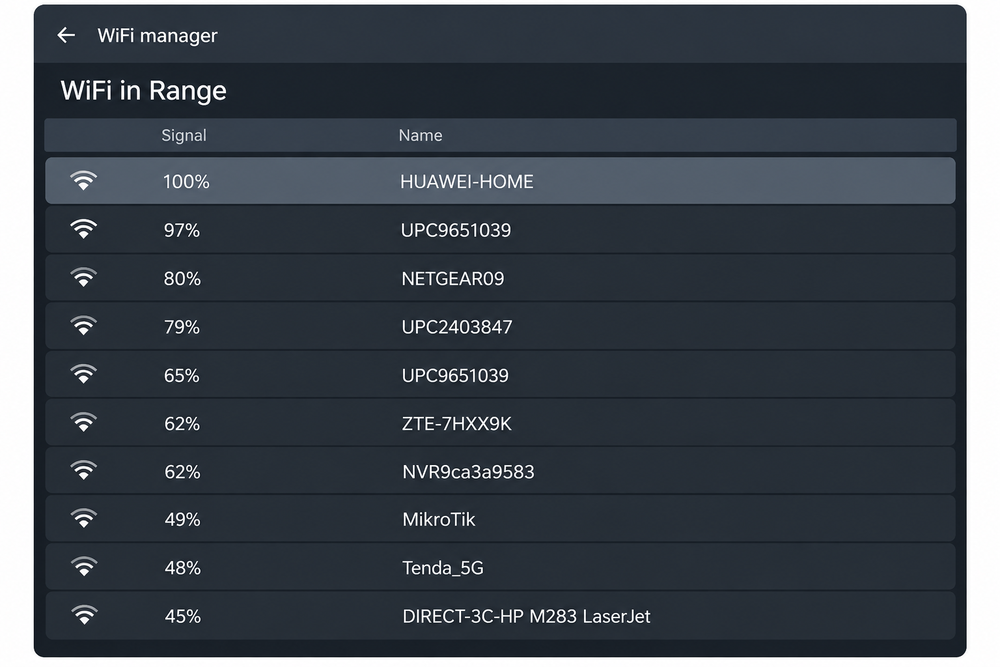
Open the service menu and select Wi-Fi.
A list of available networks appears. Select the Wi-Fi network you want to join.
If you cannot see your Wi-Fi network, for example after enabling a personal hotspot on your phone, wait a moment and press the button with two arrows forming a circle at the bottom right. This refreshes the list of available Wi-Fi networks. If needed, wait briefly and refresh again.
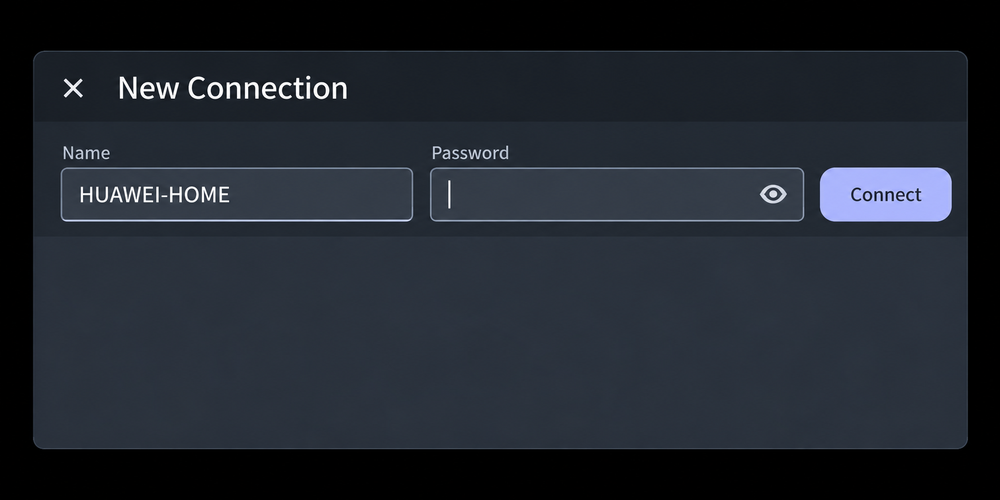
The New Connection dialog opens with the selected network name. Enter the password in the Password field and press Connect. Use the eye icon to show the password if needed.
Check the connection.
In the administration interface, check that the device is communicating with the server and is online.
You can also configure the same connection using either of the following Linux tools. Choose the method that suits you; these methods are not limited to troubleshooting.
Alternative route 1 – T button
Open the service menu and select Wi-Fi.
Press the T button.
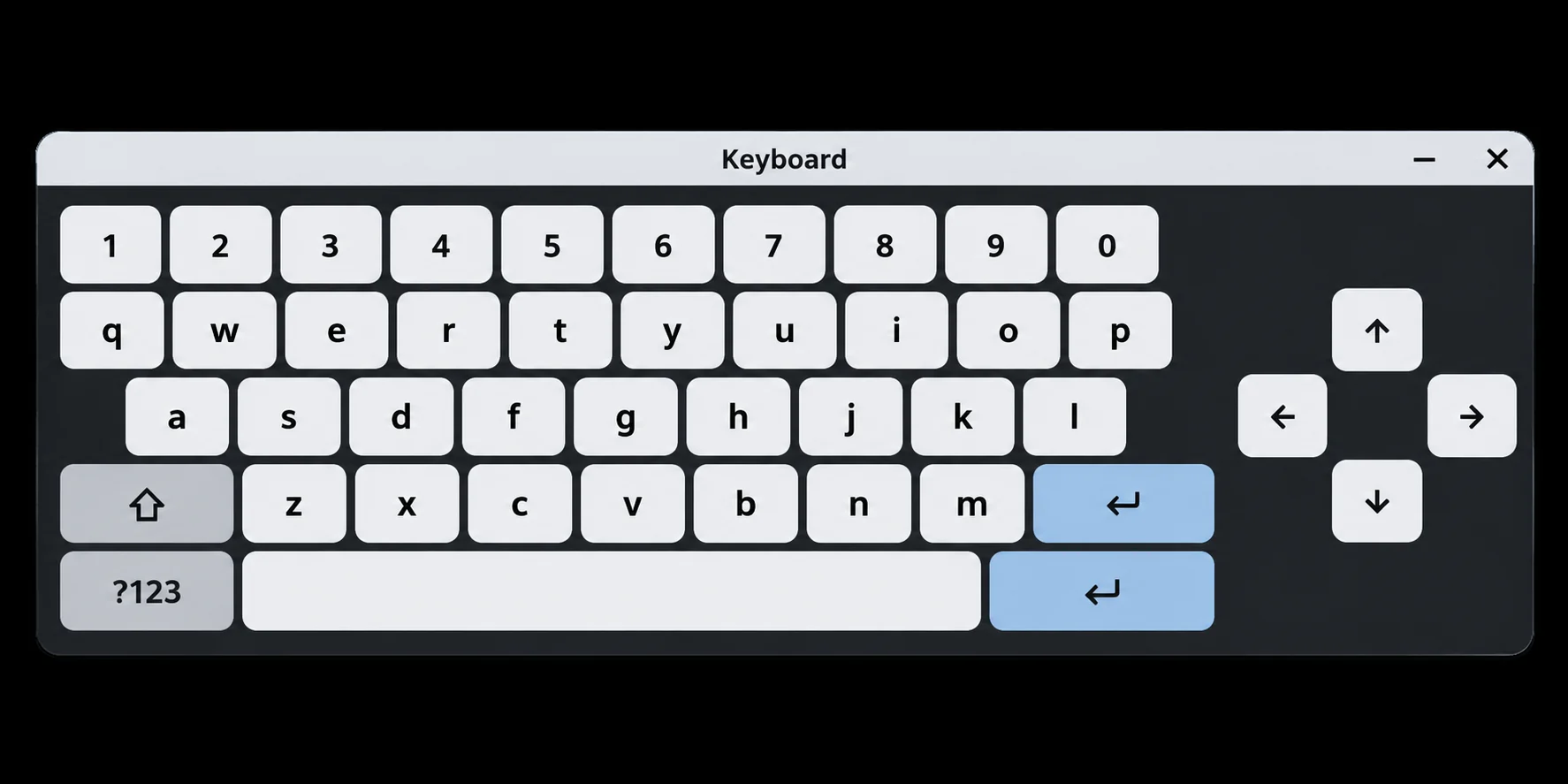
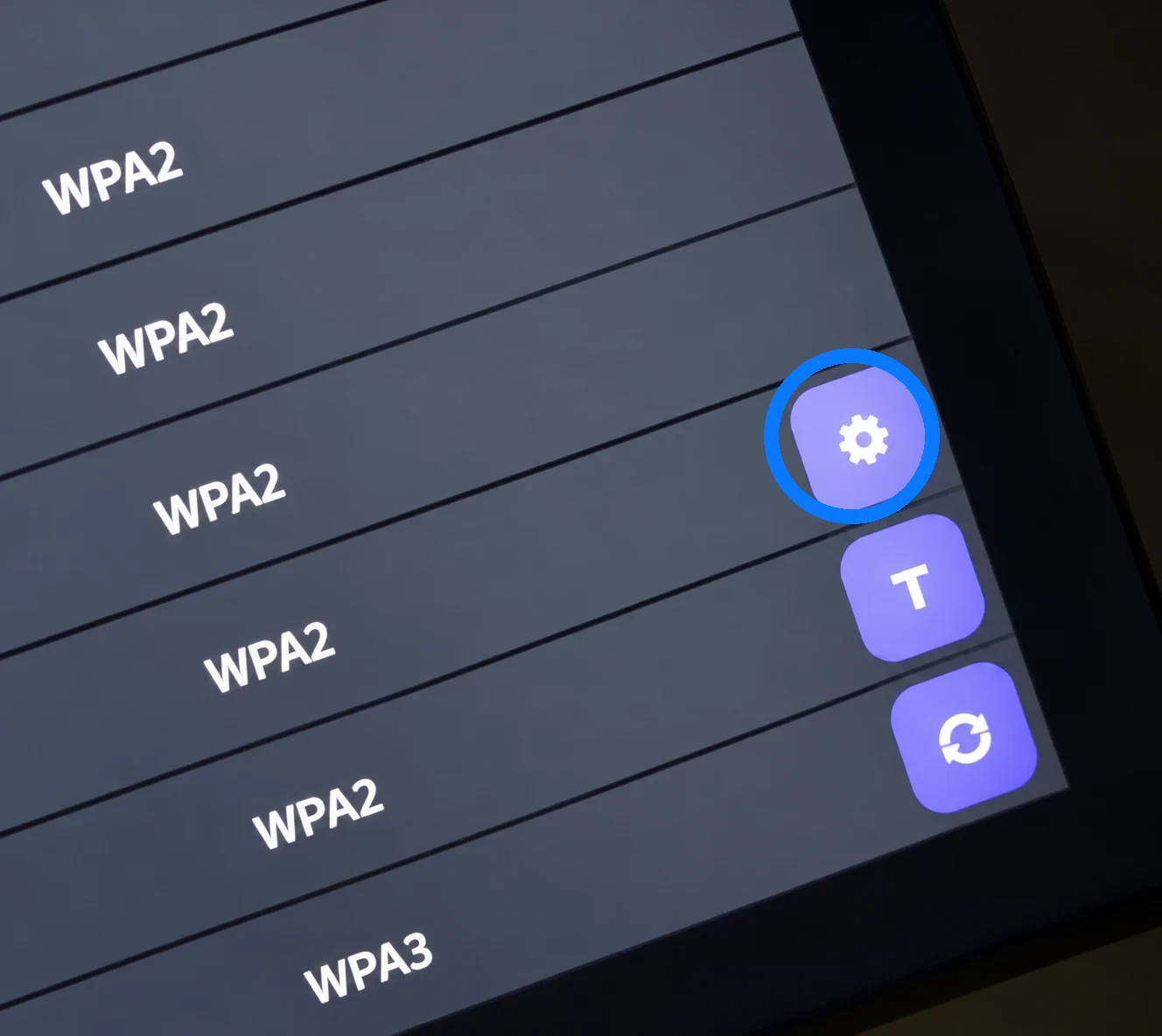
At the bottom right of the network list are three buttons: settings (gear), T , and refresh (two arrows forming a circle). NetworkManager TUI and the on-screen keyboard open automatically. No command needs to be entered.
Refresh (two arrows forming a circle) updates the list of available Wi-Fi networks.
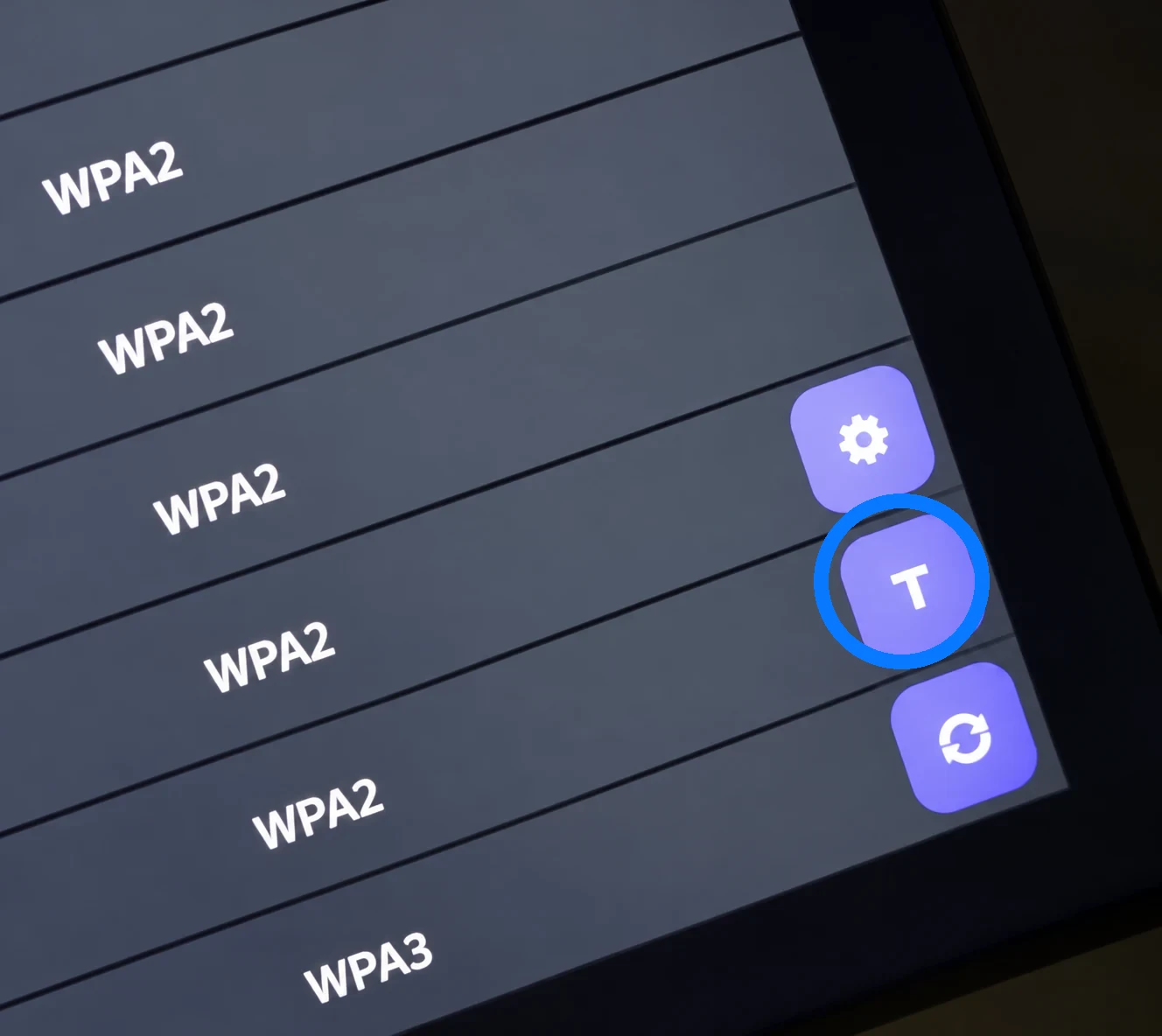
The first image highlights the T button. After pressing it, follow the steps below.
Important: NetworkManager TUI cannot be operated directly by touch or mouse. Use arrow keys on the on-screen or physical keyboard, Enter to confirm, and Backspace to go back where supported.
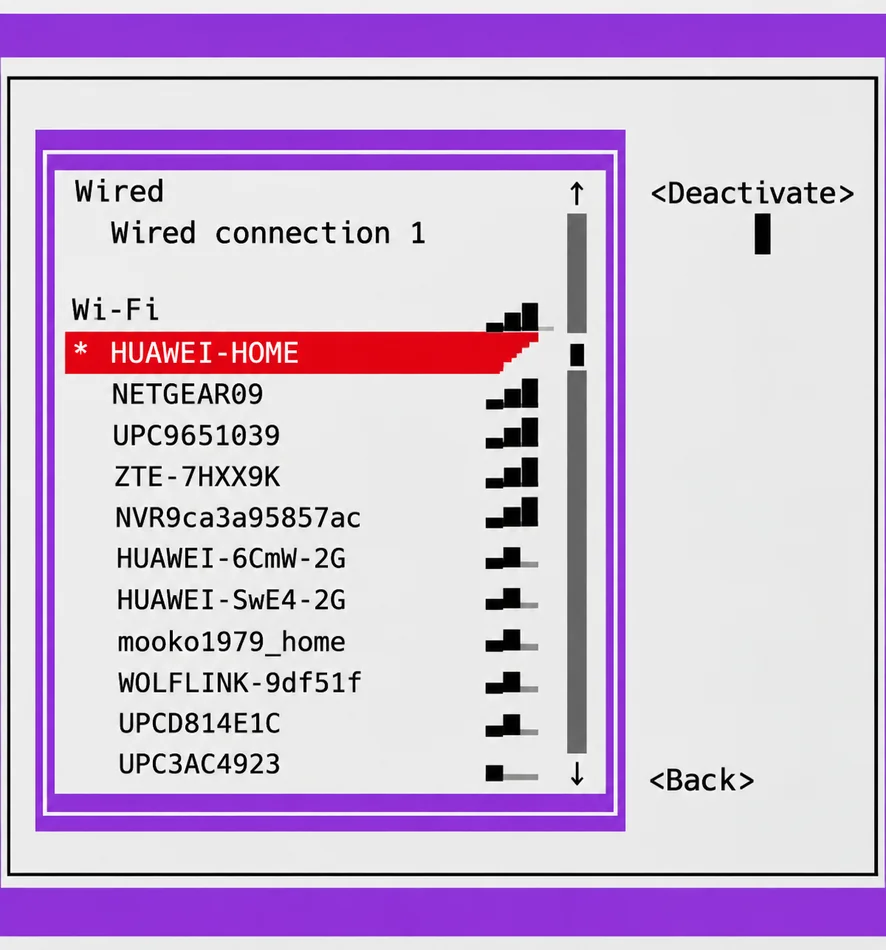
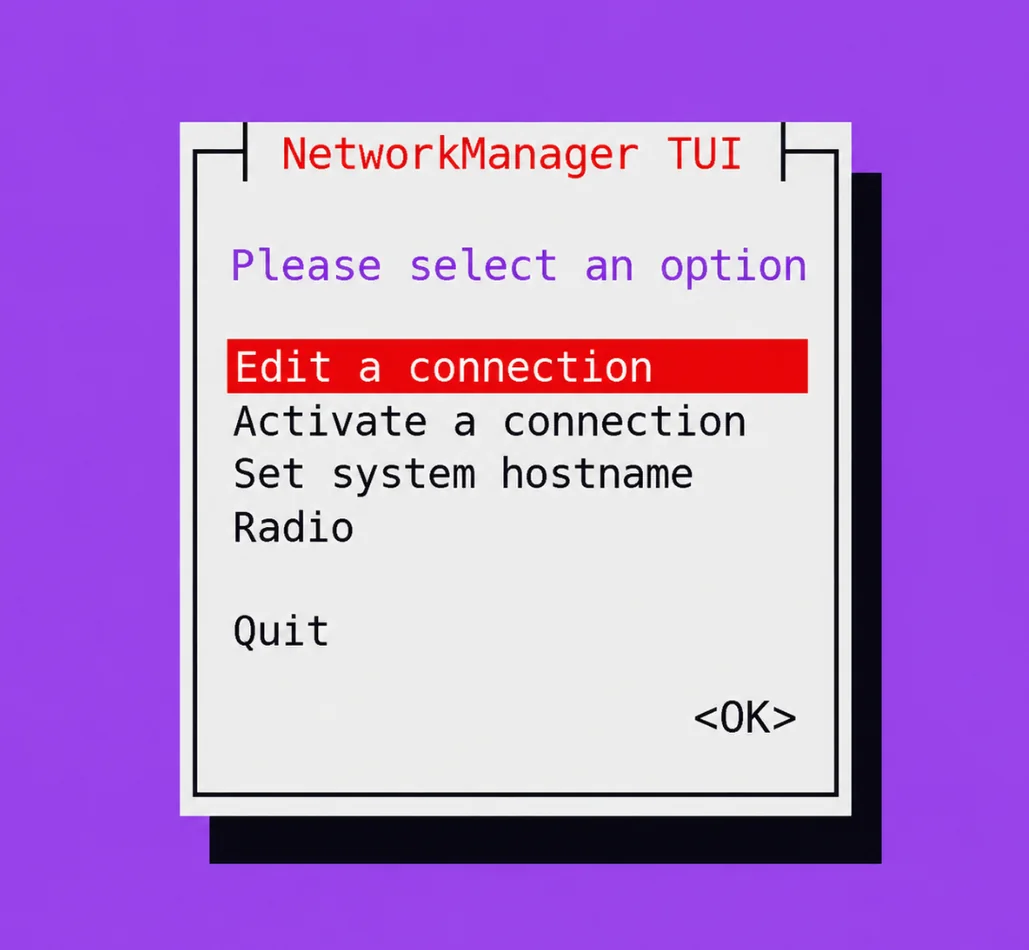
Use the arrow keys to select “Activate a connection” and confirm with Enter.
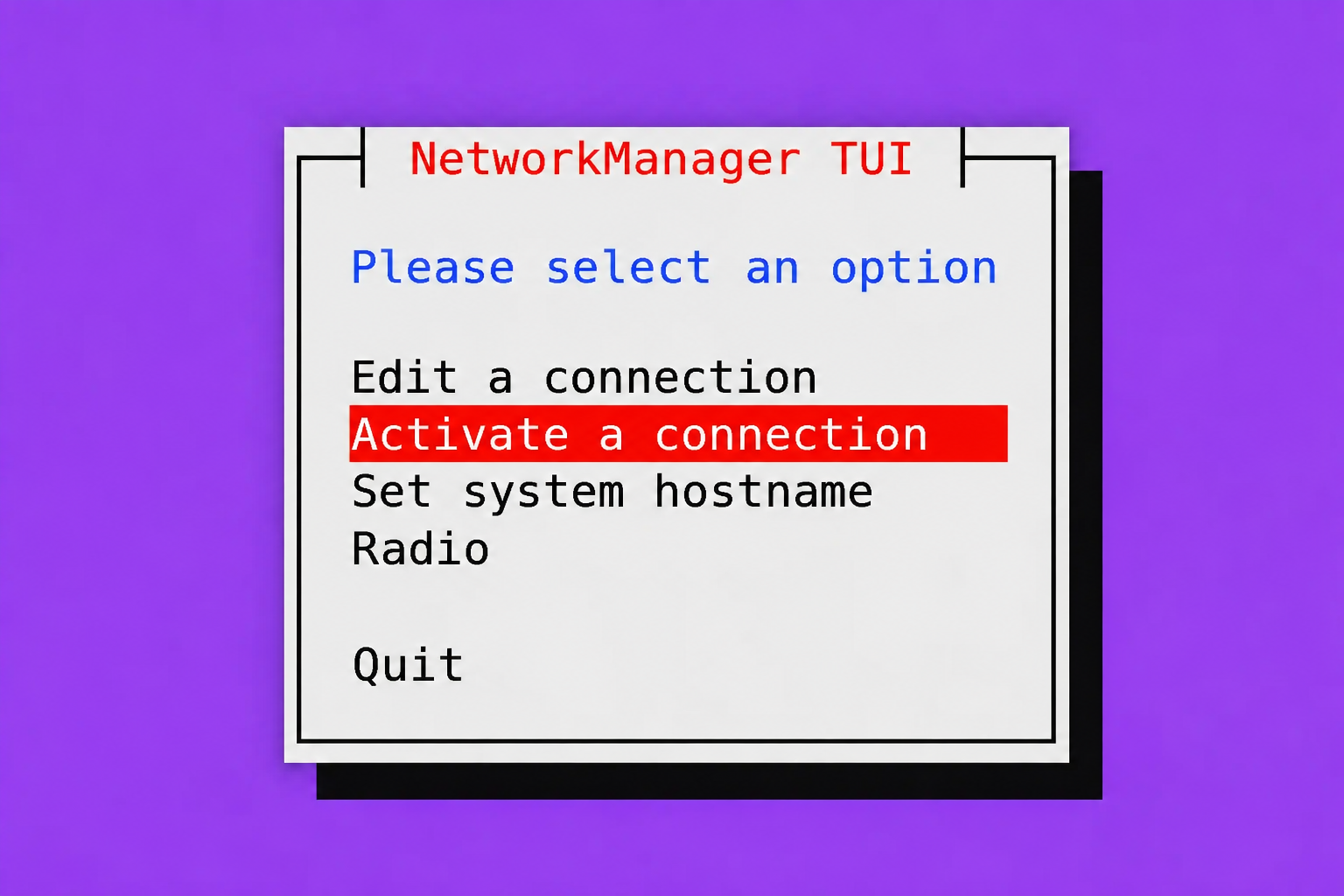
Use the arrow keys to select the Wi-Fi network and confirm activation. An asterisk (*) marks an active connection.
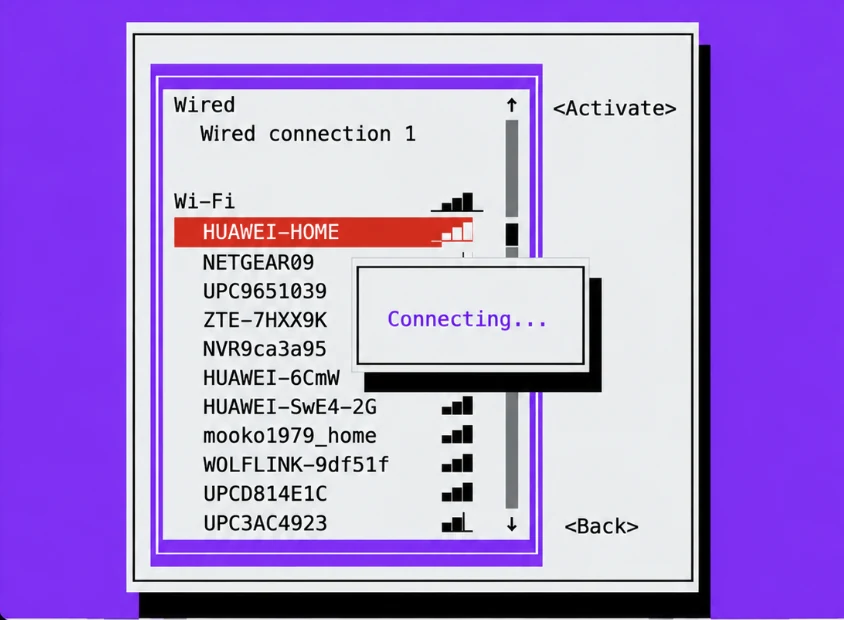
A “Connecting…” message may briefly appear while connecting.
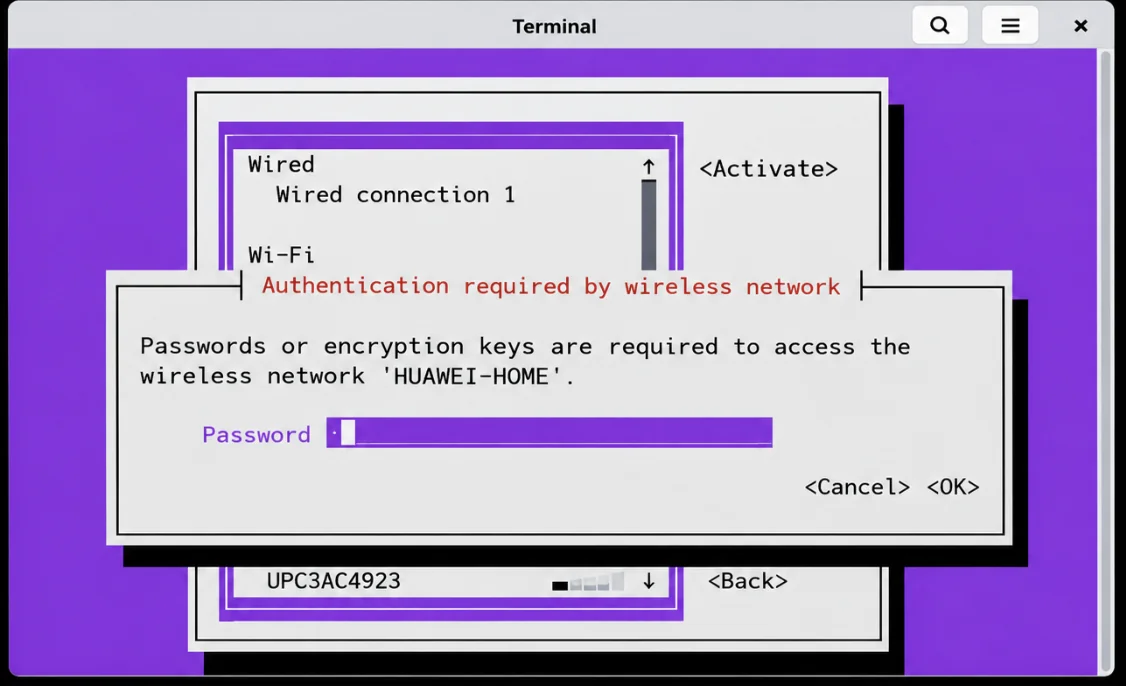
For a secured network, enter its password in the “Password” field, navigate to “OK”, and press Enter.
Finish. After connecting successfully, close the system window and on-screen keyboard, then close the service menu. In the administration interface, check that the device is communicating with the server and is online. If it remains offline, follow the guide The device is connected to Wi‑Fi but is offline in the system.
Manage saved connections (optional).
To change a saved password or other settings, choose “Edit a connection” in the main menu.
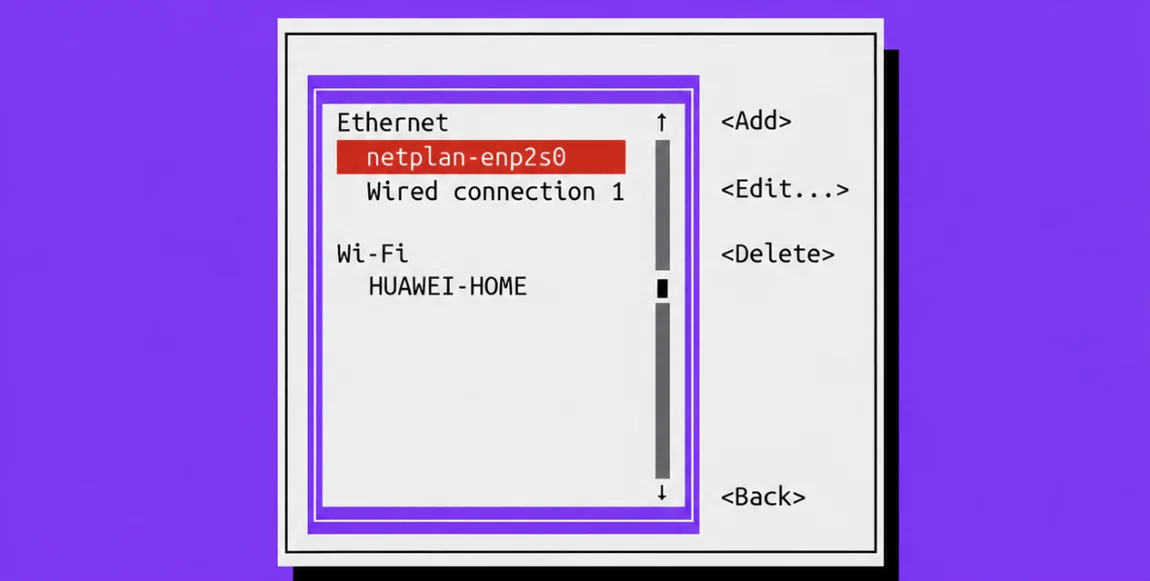
Select the Wi-Fi profile from the saved connections list. “Edit…” changes settings; “Add” creates a connection; “Delete” removes a saved profile.
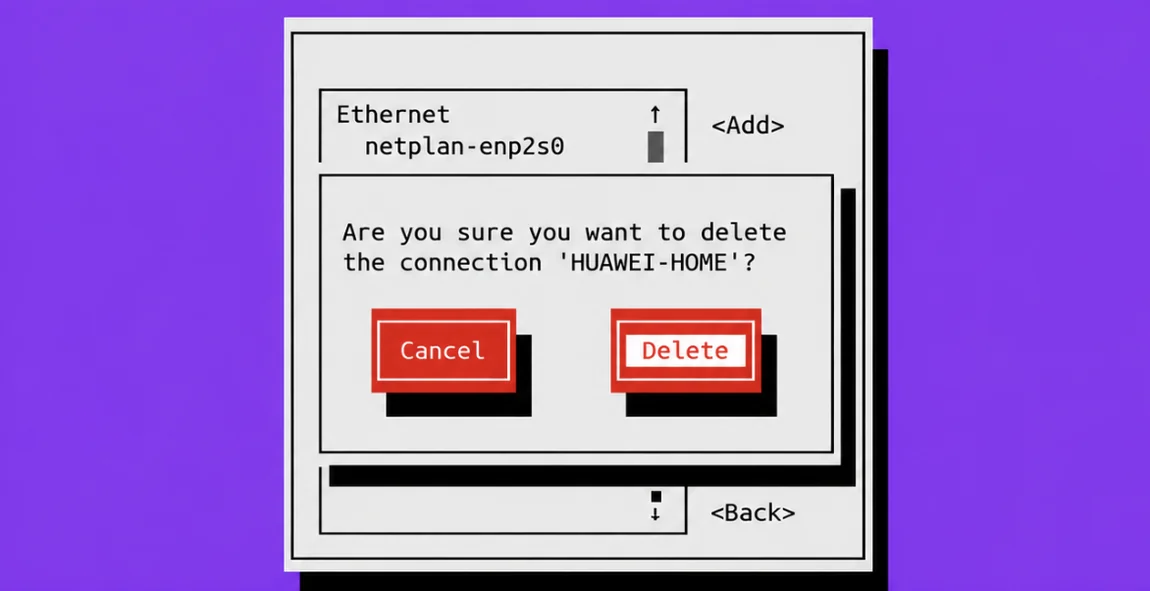
A “Cancel” / “Delete” confirmation appears before removal. Removing a profile does not disable Wi-Fi.
Alternative route 2 – Linux settings (gear icon)
Open the service menu and select Wi-Fi.
In the Wi-Fi screen, press the gear icon (highlighted in blue). This opens the Linux Network Connections window for managing network profiles.
Under Wi-Fi, select the relevant connection. Edit its settings and enter the password if needed. On some Linux versions, choosing a newly available Wi-Fi network happens in a separate system Wi-Fi menu; Network Connections mainly manages saved profiles.
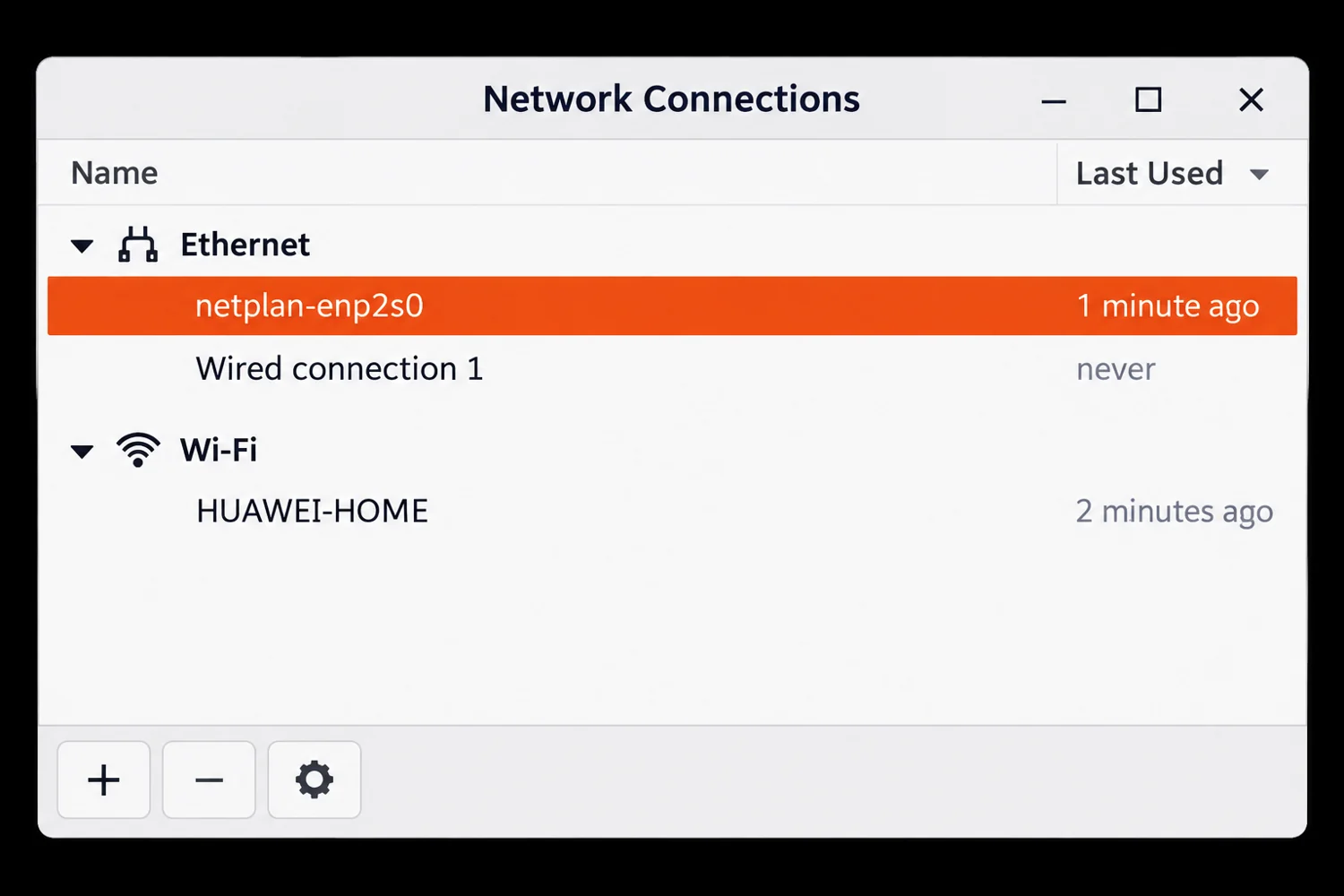
Check the connection.
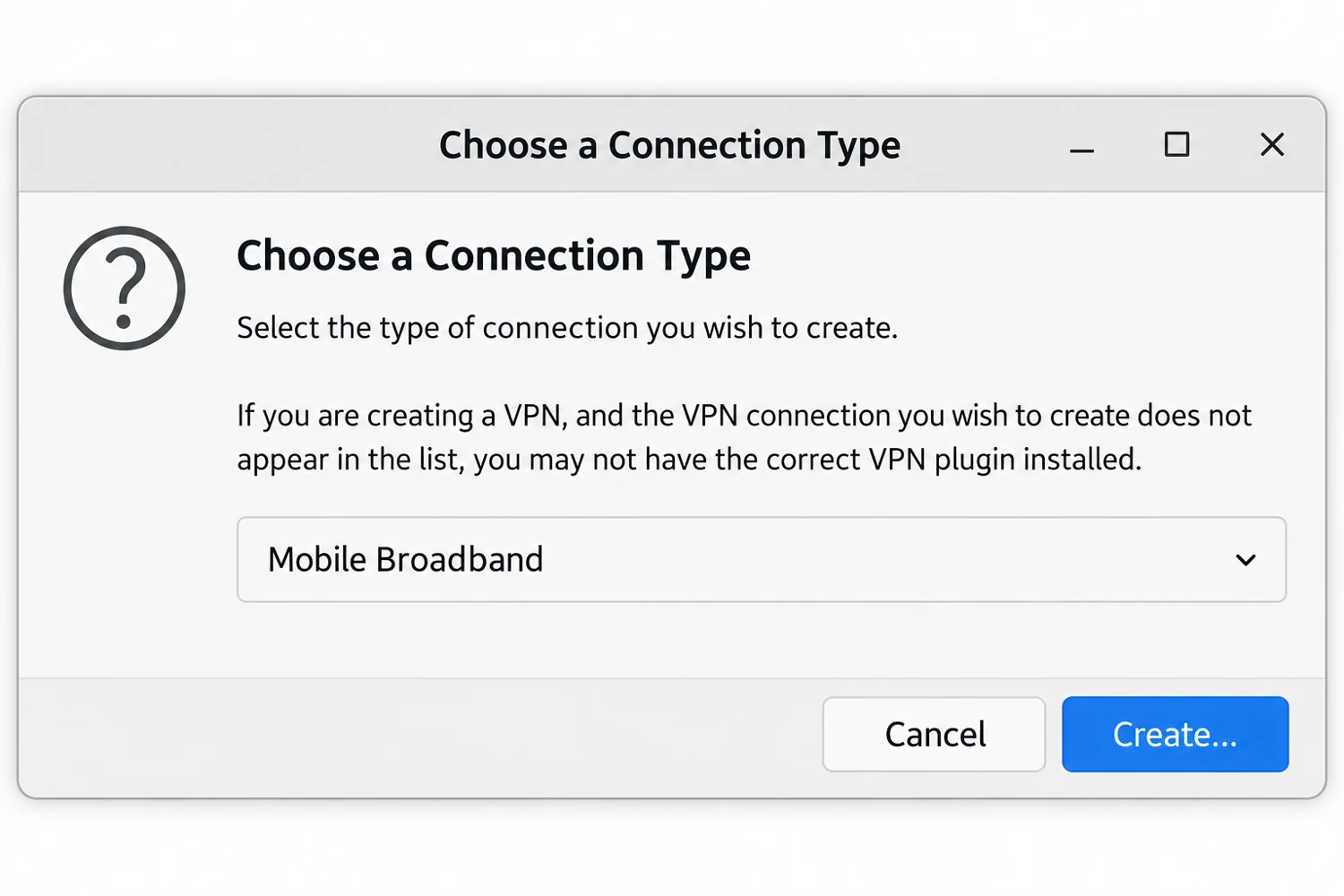
- Other connection types (optional): The + button creates a new network profile. Depending on installed drivers and plugins, this can include mobile broadband via a compatible USB modem or a VPN. The + button is not needed for normal connection to an existing Wi-Fi network.
Related topics and next steps
← Back to overview – Setup & Management
Contact your software provider.