
Documentation / Setup & Management / Accessing the service menu
Accessing the service menu
Introduction and orientation
The service menu provides access to the player’s local network and system tools. Learn how to open it by touch or mouse and what each option does.
Steps and settings
How to open the service menu
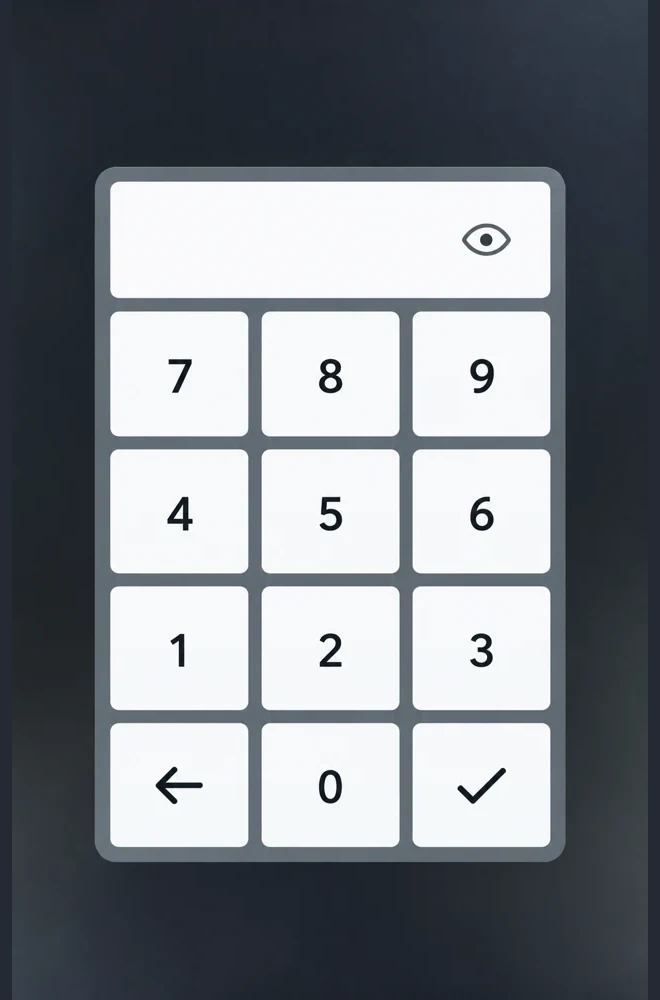
The dialog has a timeout that does not reset as digits are entered. Have the ID ready; reopen the dialog if it closes. The service menu works offline.
- In administration interface, open the device details and note the six-digit device ID shown at the upper left under “Device”. This is not a universal service code.
- Open the menu using the method for your display. Use one of the following options.
- Touchscreen: press and hold the top-right corner for approximately one second. Enter the device ID in the dialog and confirm with ✓.
- Non-touch display: temporarily enable “Mouse cursor” in the device settings, connect a USB mouse, and hold the left mouse button in the top-right corner for approximately one second. Enter the ID and confirm with ✓. Disable the cursor again afterwards.
Service options
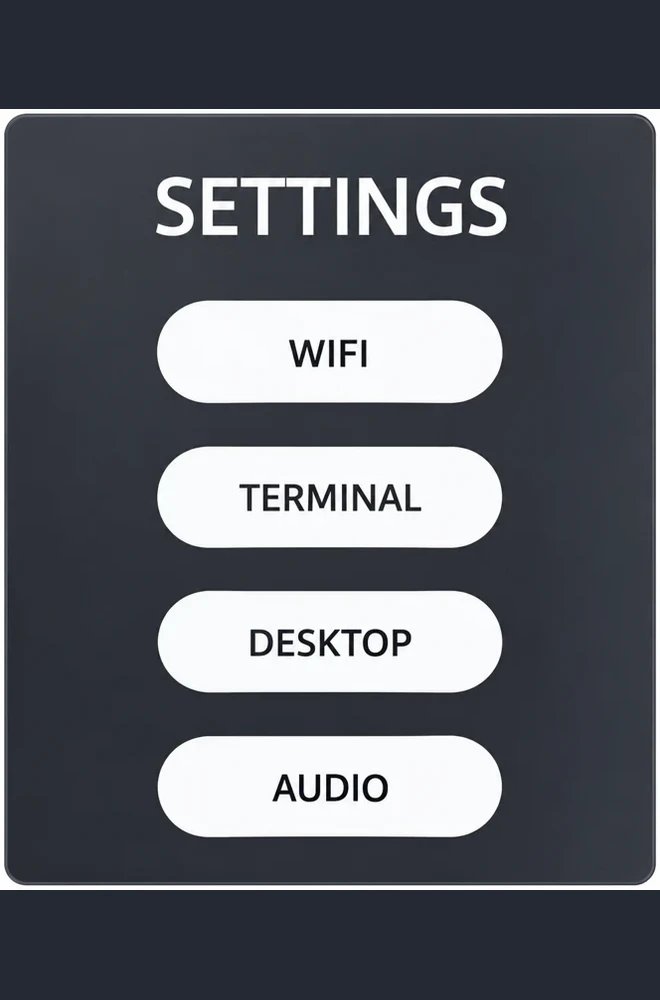
- Wi-Fi opens wireless connection settings. Example: configure or change a Wi-Fi network and troubleshoot connectivity. Example procedure: Connect a device to Wi-Fi.
- Terminal opens a terminal window directly from the service menu without entering the Ubuntu desktop. Close it when finished. Example: check free disk space, system logs or web content updates. Example procedures: Free disk space is decreasing or running low; The “Website” application displays outdated content.
- Audio opens the Ubuntu system sound dialog. Select the appropriate audio input or output, such as the display audio output, then close the dialog. Example: select an audio input or output.
- Desktop opens the Ubuntu desktop. When finished, log out of the desktop to return to the system applications. Example: change system settings using the Ubuntu graphical interface.
Related topics and next steps
← Back to overview – Setup & Management
Didn't find what you were looking for?
Contact your software provider.
Contact your software provider.